The rime remembers
Your tools.
Working together.
A ward is a tool on your page. Bring your notes, browser, projects and Rime together. Arrange them your way. Connect them with Leylines.
Your tools.
A little help.
Talk to Rime here, or connect a Leyline to ask a question.

Add wards
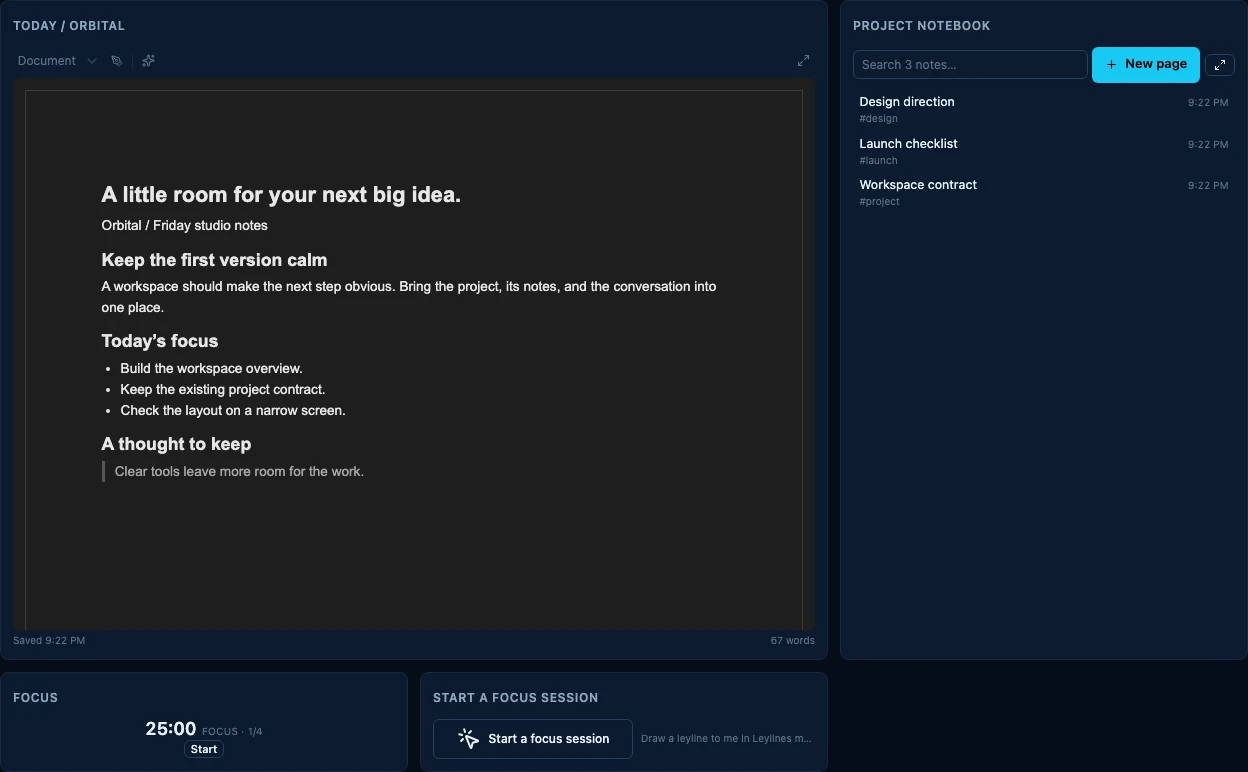
A ward is a tool card. Arrange your notes, editor, browser and Rime on a page that fits your work.
Illustrative animation using real Rimeward UI with sample content. No live request. This example needs a configured Leyline and Rime model access in the app.
Build a page that fits
A ward for the work at hand.
Add the tools you need. Resize them, move them, or give a different part of your day its own page. Wards stay useful on their own; Leylines let them work together.
Editor
Make something.
Browser
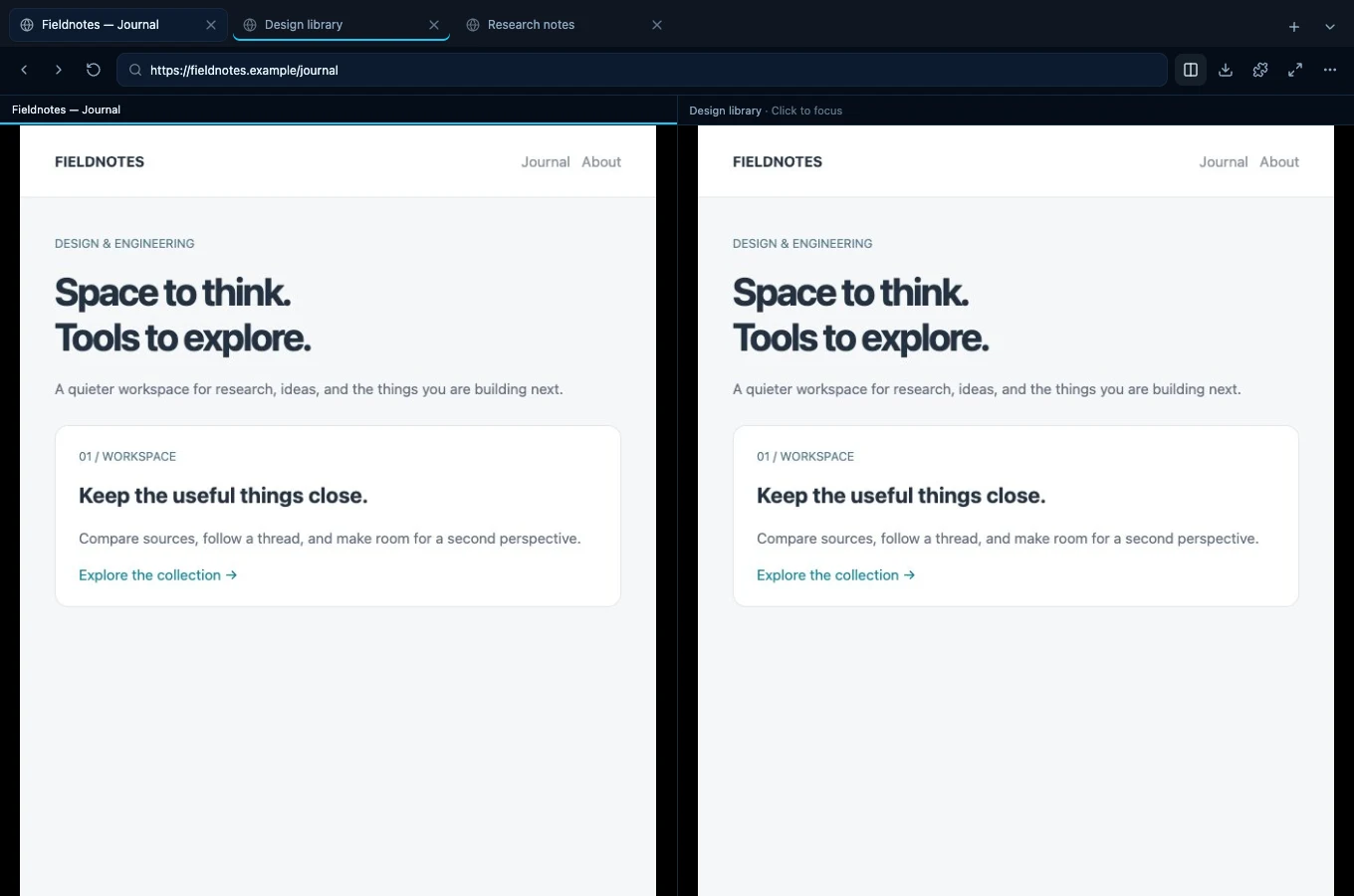
Keep the web in reach.
Notepad
Write it down.
Notebook
Give ideas a home.
Rime
Work with an AI partner.
Timer
Make time for it.
Button
Start a connected action.
Terminal
Use your own tools.
A home for what you’re building
From the first idea
to the last command.
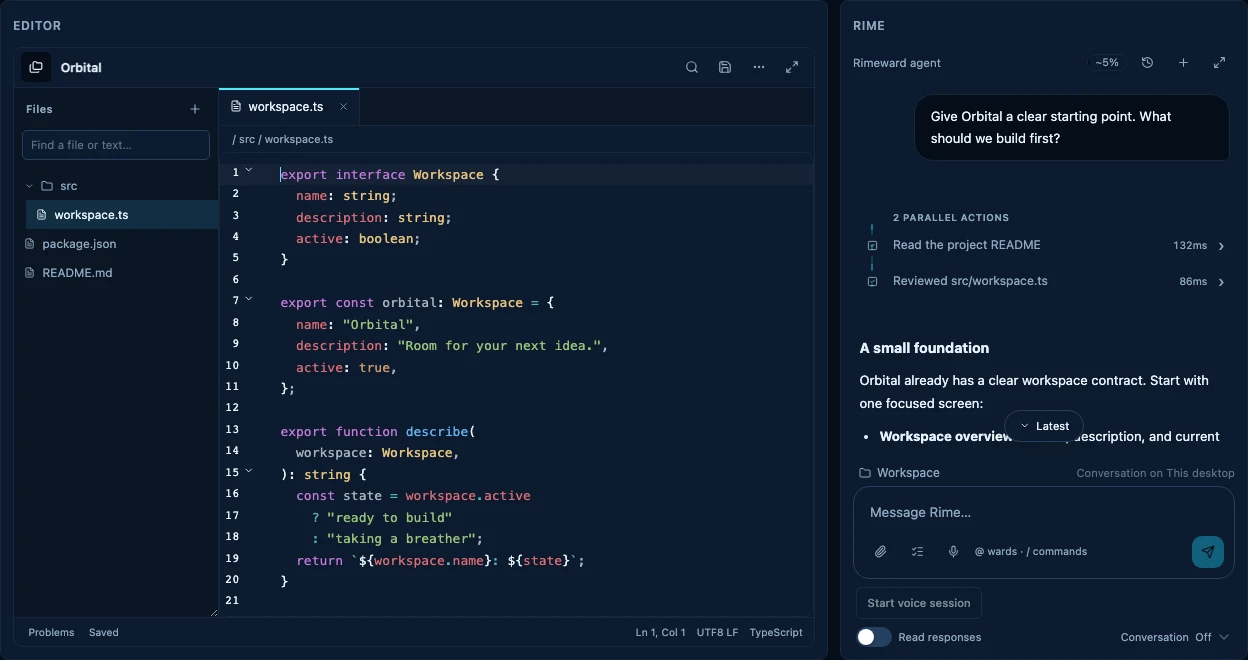
Open a local project. Edit files, see diagnostics, run a terminal, and ask Rime to help. Your project folders stay on their computer.
Edit with confidence
Explore files, spot problems, format code, and recover unfinished work in the editor.
Use your own tools
Run native terminal sessions, or work with your installed Codex and Claude Code CLIs.
Keep projects local
Your files and shells belong to their computer. Reach the live workspace through an approved server connection.
Meet Rime
An agent with
your workspace in reach.
Talk through an idea, work with files, or follow a task as it unfolds. Rime keeps conversation history, memory, and a visible trail of its actions.
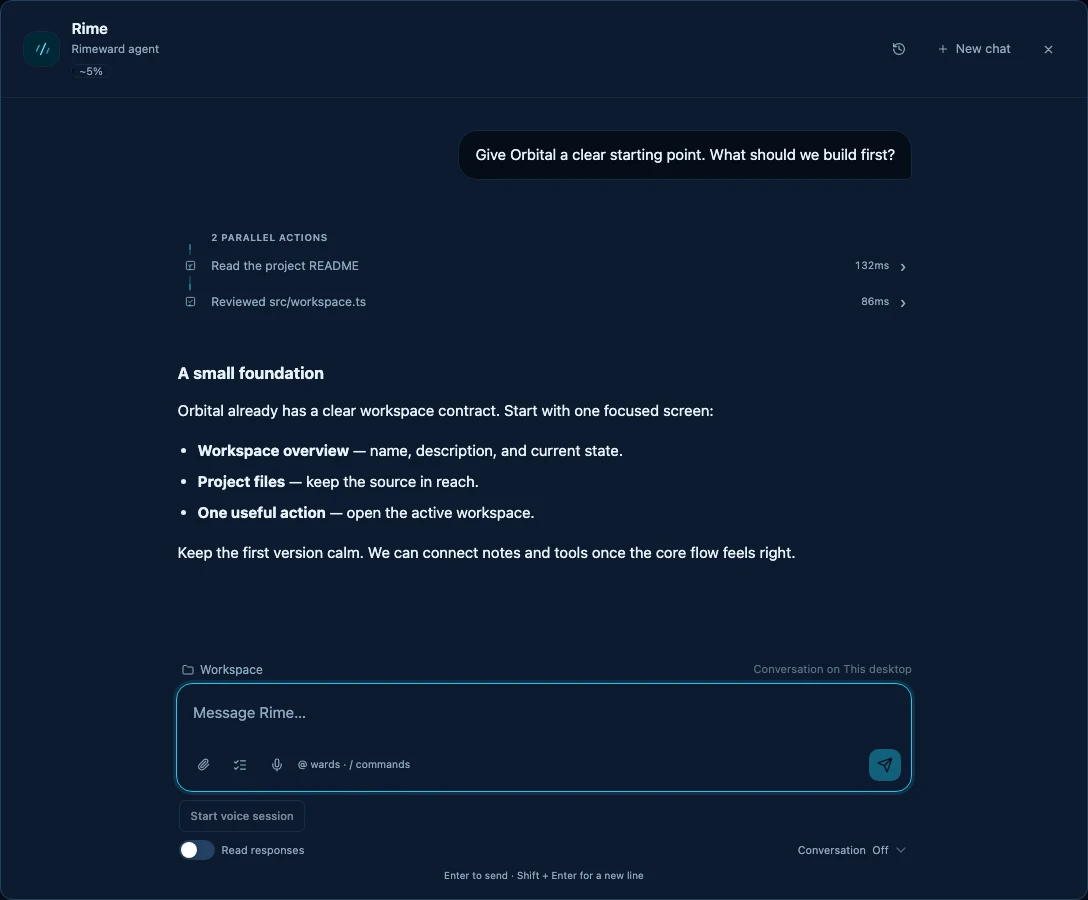
Use ChatGPT / Codex, OpenRouter, the OpenAI API, or an OpenAI-compatible endpoint. Connect your provider or local model.
More than a project
Your day belongs
here, too.
Put notes, mail, calendars, routines, Notion, and service health on the pages where you need them. Connect the services you use.
Choose layouts, themes, fonts, icons, and backgrounds. A ward is a tool on a page; arrange them around the way you work.
Make the connections
One action.
A little further.
Draw Leylines between your tools. A button starts a routine. A service incident asks Rime to investigate. An event becomes the next step in your workflow.
Explore your workspace🖥️
EventService incident
ActionAsk Rime to investigate
Stay in context
The browser is
part of the workspace.
Keep real Chromium sessions alongside your notes and projects. Manage downloads and extensions, keep logins on their owning computer, and ask Rime about the page.
Pick up elsewhere
Your computer’s tools.
Within reach.
Pair a Rimeward server with your desktop. Use its live editor and terminals from a browser or phone, or add a Remote Desktop ward to reach the screen.
The desktop stays on and does the work. Project folders remain local; shared Rime history and tool output can pass through your trusted server.
Set up remote access🖥️Same workspace.
Same workspace.
Smaller screen.
Keep working with the computer that owns the project.
Desktop connected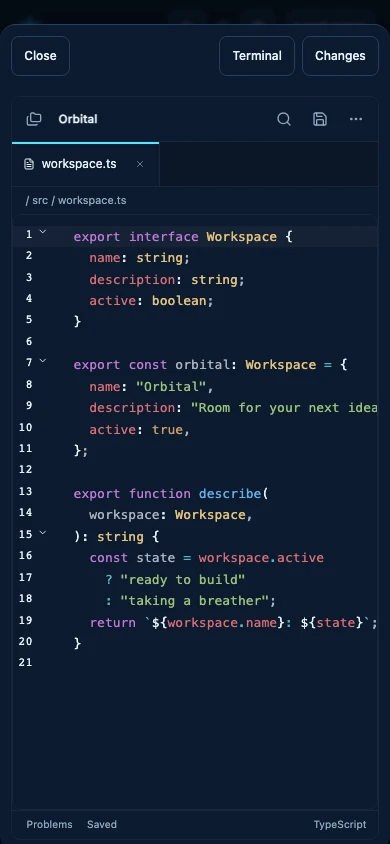
Screenshots show disposable demonstration workspaces. Features depend on your release, platform, model provider, and connected services.
Start right here
Make room for your work.
The desktop bundles Node and Chromium. Start on one computer; connect a server when you want remote access.
View on GitHub