
Prepare both computers
Start with one keyboard, one mouse, an Apple Silicon Mac and a Linux computer running Hyprland. Get pointer crossing working before adding clipboard or projection. Keep a way to operate each machine locally while setting up.
Follow the running guide and pinned Rust toolchain. A Cargo build produces binaries; a usable installer also needs staged platform payloads.
- Mac: builds need Xcode command-line tools, Python, Homebrew Opus and a stable signing identity.
scripts/macos/install-agent.sh --features videobuilds and signs the app, installs it under~/Applications, adds login startup and installscrosspanectl. - Hyprland: install the README’s native dependencies, including PipeWire, Opus and libxkbcommon development libraries. Run the agent in the graphical session, using the documented systemd user service or
crosspane-agent run.
Each computer runs its own agent in its desktop user session, never as root. The tray or Mac menu bar opens Settings. Run crosspanectl status on both machines and confirm each local agent responds before pairing.
Connect and compare codes
Crosspane connects directly over IP: a LAN, direct Ethernet or configured Thunderbolt networking can carry the connection. Internet access alone is insufficient if the network isolates the two machines.
On Linux, allow UDP 47811 for the agent and 47812 for pairing from your LAN subnet. The UFW example is sudo ufw allow from 192.168.1.0/24 to any port 47811:47812 proto udp; replace that subnet with yours. If you change the configured agent port, pairing uses port + 1.
- On the Mac, open Settings → Pairing → Open pairing window.
- On Linux, choose Scan, then Join beside the Mac’s name.
- Compare the Mac’s six-digit code with the candidates on Linux. Select the matching code on Linux, then choose Confirm on the Mac.
- Check both Machines tabs or
crosspanectl statusfor the expected peer.
A discovered name is not proof of identity. Compare the code on the physical computers; cancel if it does not match. Connections use authenticated peer identities and QUIC with TLS 1.3.
If discovery fails, use the CLI pairing flow with the Mac’s reachable IP address. Discovery disabled with CROSSPANE_DISCOVERY=0 intentionally produces no scan results.
Choose each permission
macOS permissions let Crosspane use the local computer. Crosspane’s per-peer grants let a particular paired computer act here. Pairing does not replace either layer.
On the Mac, open System Settings → Privacy & Security. Local Network permits connections; Accessibility permits input injection and window movement; Input Monitoring permits keyboard and mouse capture; Screen & System Audio Recording permits window capture. Use crosspanectl request-permissions to request missing permissions, then verify status.
In Settings → Machines, grants describe what the selected peer may do on this computer. To drive Linux with the Mac’s keyboard, allow the Mac’s input capability on Linux. Allow the reverse direction on the Mac only when needed.
- input: the peer may control this computer.
- browse: the peer may list this computer’s windows.
- share: this computer may share its windows with the peer.
- present: the peer may present its windows here.
Clipboard sharing starts off in both directions. On the Mac, crosspanectl allow desktop clipboard.read lets a peer named desktop read the Mac’s clipboard when you paste there. clipboard.write lets that peer offer its clipboard on the Mac. Replace the name with your peer’s name; add --off to withdraw a grant.
Test with harmless text, then a small PNG. Limits are 1 MiB for text and 16 MiB for PNG images; this is not general file transfer. Locking or unknown session state blocks clipboard operations; copy again after unlocking. Speakers need a separate speaker grant from their owner and the Mac’s audio component. Remote microphones are unsupported.
Arrange a real desk
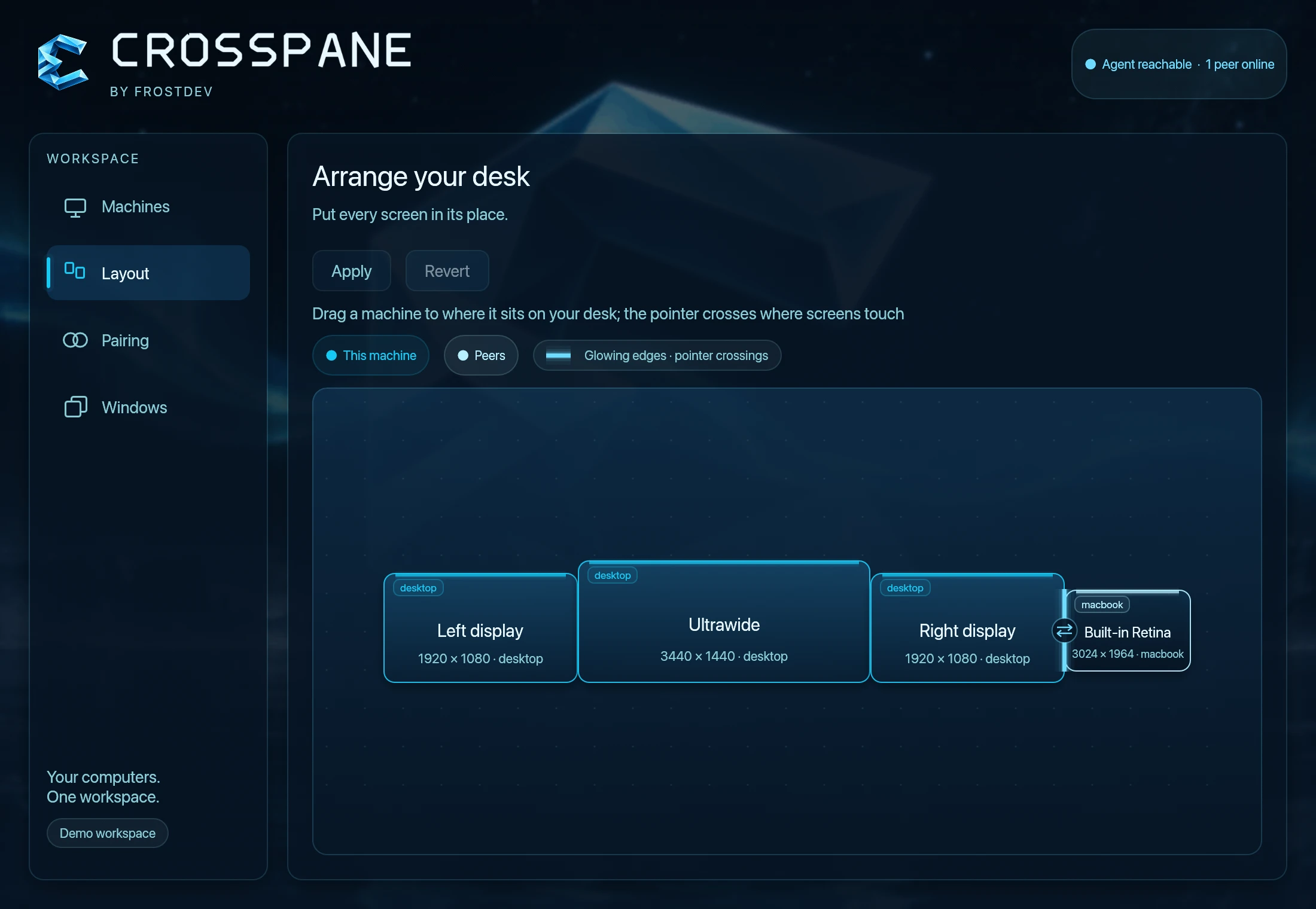
Suppose your MacBook sits left of your Linux monitor. Open Settings → Layout, drag their rectangles into that arrangement and choose Apply. Displays are sized in millimetres and snap at their edges.
The Mac’s right edge must touch Linux’s left edge. If the monitor is taller, align their lower edges or centres to match your desk. Only the overlapping part of those edges provides a crossing route. A corner above the neighbouring display has nowhere to cross.
Try near the middle of the overlap. If crossing happens on the wrong side, correct the layout. If there is a gap, bring the rectangles together and apply again. For a simple arrangement, run crosspanectl layout desktop right on the Mac.
Test input and take it back
- Open a disposable text editor on Linux; keep local controls available on both computers.
- Move the Mac’s pointer through the shared edge. Confirm the control banner names Linux, then type a short line.
- Try a click, scroll and common shortcuts before opening an important document.
- Choose Take input back in the tray or menu bar, or run
crosspanectl releaseon the controlling machine.
If shortcuts feel wrong, configure the per-peer modifier remap on the computer whose keyboard you use. The running guide documents Ctrl ↔ Command/Super and Alt ↔ Command/Super profiles. Configuration changes apply after crosspanectl restart; test again in the disposable editor.
Bring one window over
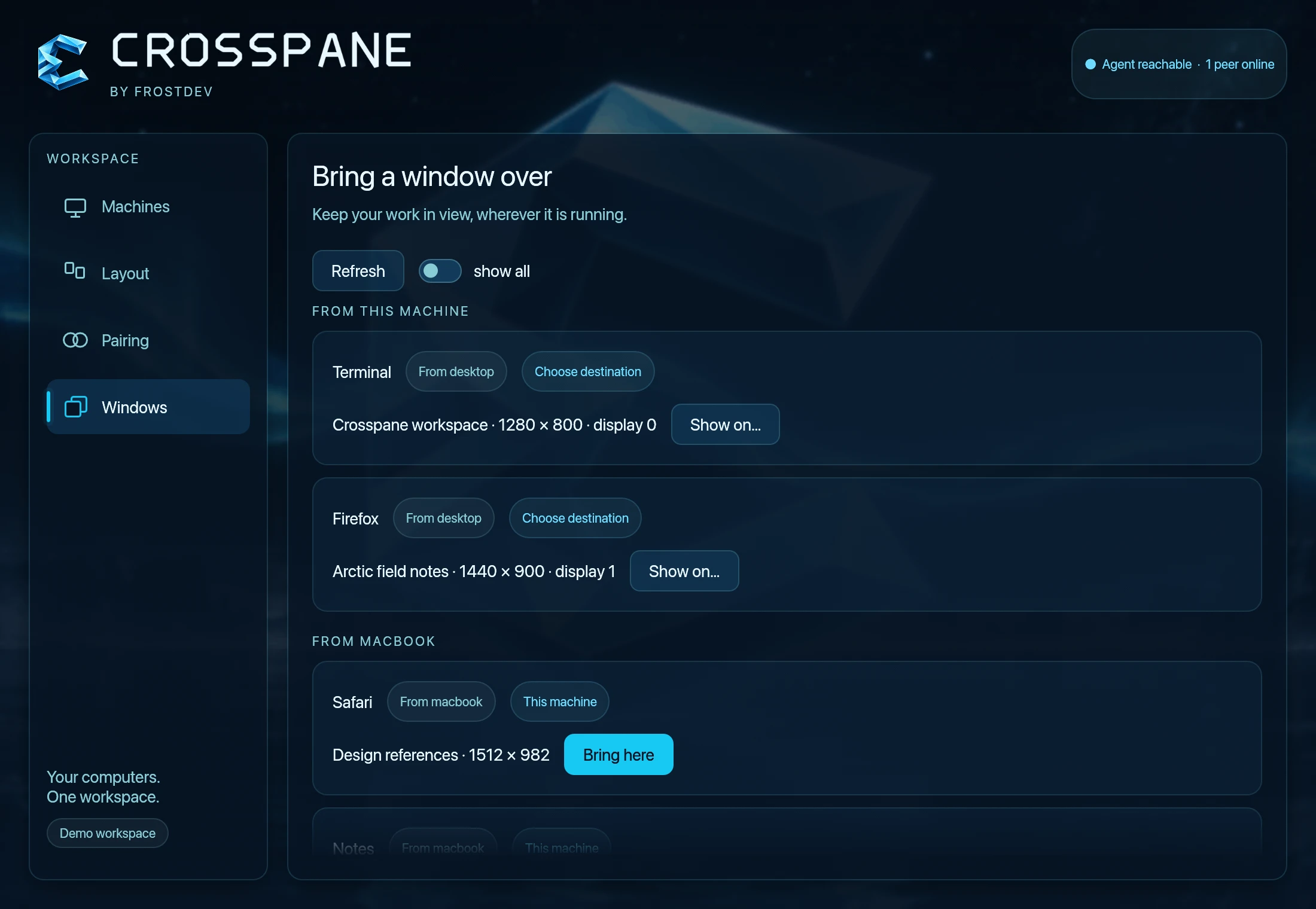
Open an ordinary Mac app window. On the Mac, grant Linux browse and share; on Linux, grant the Mac present. Then on Linux, use Show a window of the peer here in the tray, Settings → Windows, or crosspanectl pick --from macbook.
The app and its files stay on the source. Mac projection mirrors the original by default. Hiding it requires the opt-in private-vdisplay build and mac_virtual_display = true, using a private macOS API. Hyprland can park a source window on a headless twin output, with mirroring as fallback.
Close the projection or choose Return to give it back. After picking works, try dragging a title bar toward a neighbouring screen. On Hyprland, release when the HUD says Release to move. Dragging depends on negotiated features, grants and native gesture reporting; use the picker when unavailable.
If the connection drops, held keys and buttons are released immediately. A projection keeps its last picture during a 20-second reconnect grace period. It resumes on reconnection; otherwise the window returns to its source. The picture can be stale: check status before typing.
Hyprland also has a home-control mode for entering a projection of its own twin-parked window while controlling a peer. Its notice identifies the window and Ctrl+Shift+Alt+Escape release chord. Read the home-control instructions first; a permanent binding on that chord prevents entry.
Find the first failing step
Run crosspanectl status on both computers. Check local agent availability, peer connection, grants, layout and recent notices in that order. Fix the first failed stage.
- No connection: check Mac Local Network consent, Linux UDP rules and the peer address. “No route to host” on the Mac can indicate missing network consent.
- Connected, no crossing: check the target’s input grant, touching edges and whether panic left crossing disarmed.
- Permission still missing: restart the agent and check status. macOS permission changes normally trigger a restart, but verify the result.
- Empty picker or refused projection: check browse/share on the source and present on the destination. Mac window titles and capture need Screen Recording.
- Paste blocked: check grant direction, unlocked session and content limits. On macOS, inspect Crosspane’s Paste from Other Apps setting. Copy fresh text after unlocking.
- Motion consumes bandwidth: try wired networking and check the video-enabled build requirements. Lossless tiles can be expensive for full-screen video over Wi-Fi.
Mac logs: ~/Library/Logs/Crosspane/agent.log. Linux user-service logs: journalctl --user -u crosspane-agent. Report platforms, versions, connection direction and the first failure, removing sensitive content. A working input test does not establish projection, clipboard or speaker success.
Continue with the running reference, Mac build helpers and current limitations, or the Crosspane overview.