
Choose your Chrome installation.
Glaze restyles Blackboard Ultra in your browser. You still sign in through your institution and use Blackboard’s own courses, assignments and grades. You do not need a Glaze account.
The 2.0.1 package requires Chrome 113 or newer. To install that package:
- Download and extract. Get glaze-v2.0.1.zip from the official release. Extract it into a folder you will keep. The folder should contain
manifest.json,popup.htmlandoptions.html. - Open Chrome’s Extensions page. Type
chrome://extensionsinto the address bar. Turn on Developer mode, then choose Load unpacked and select the extracted folder containingmanifest.json. - Keep one active copy. If an older Glaze is installed, disable it on the Extensions page before enabling the new copy. Confirm the new card says 2.0.1.
- Pin and open. Open Chrome’s puzzle-piece Extensions menu and pin Glaze. Visit your Blackboard Ultra site, refresh its tab, then click the Glaze icon.
An unpacked installation uses that local folder and does not receive store updates. To update it, download a newer official package, replace the files in the same folder, choose Reload on its extension card and refresh your Ultra tabs. Export settings first. Chrome’s unpacked-extension reference illustrates the installation and reload controls.
If your managed Chrome profile does not allow unpacked extensions, use the available store version or contact your institution’s administrator. On a Mac using Safari, follow the Safari installation guide instead.
Check your Blackboard page.
Open Blackboard normally and enter a course. Glaze targets secure pages whose address contains the /ultra/ path, such as https://your-school.example/ultra/courses/…. It matches that path across institutions, so there is no university selector to configure.
The extension needs access to those pages to read and restyle their interface. Its declared Chrome permission is storage for your preferences, plus page access for https://*/ultra/*. Review Chrome’s site-access controls if the popup works but the course appearance does not change.
- Confirm Glaze is enabled on
chrome://extensions. - Confirm you are in Ultra, beyond the institution’s login page.
- Refresh a tab that was already open when Glaze was installed or reloaded.
- Open the popup and leave Theme on / off switched on.
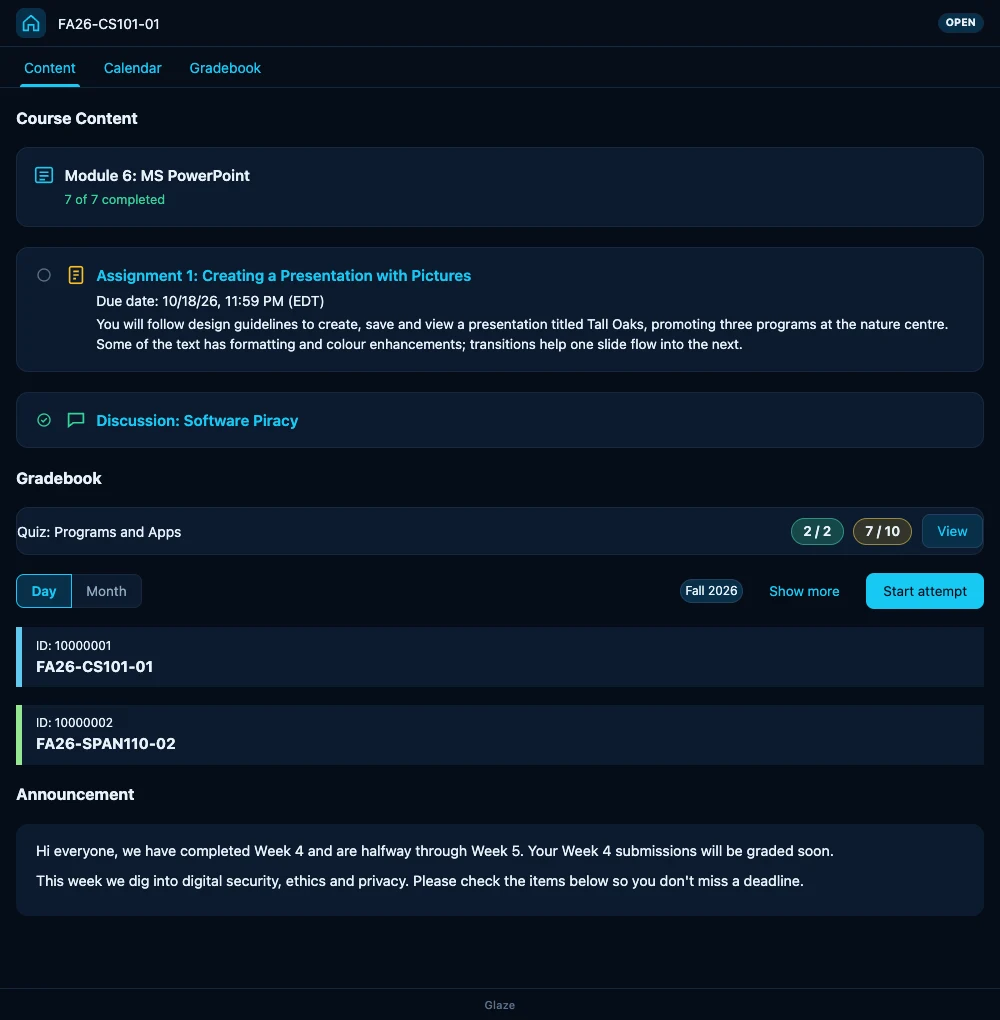
Blackboard Original pages and tools opened on other addresses can keep their own appearance. The editor’s built-in preview is a sample course page; use your actual course to check how the theme fits your institution’s interface.
Start with the quick controls.
The popup is the place for everyday changes. Under Palette, choose one of six built-in swatches: Frost, Midnight, Forest, Ember, Paper or Rose. Hover a swatch to see its name. Frost is the default; Paper is a simple light starting point.
Under Motion, choose Off, Subtle or Expressive. Changes apply immediately to open Ultra tabs. Try one course content page and one Grades page before adjusting more settings.
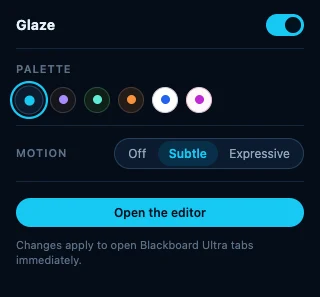
The top-right Theme on / off switch disables Glaze’s theme and helpers without deleting your preferences. Turn it off to compare with Blackboard’s own appearance, then turn it back on. Open the editor stays available while the theme is off.
Make a palette your own.
Choose Open the editor → Palette. Start with a built-in palette, then change the colour roles you care about. The fourteen controls cover accent colours, surfaces, text, lines and success, warning and error states. The editor and its preview update as you work; there is no separate Apply button.
Keep text and surfaces distinct. The editor’s Contrast checks show ratios for six colour pairings, including text on surface and text on accent. A red result is a cue to adjust that pair. The main text checks use 4.5:1; secondary text and accent checks use 3:1. These checks cover selected palette colours, so still inspect small labels, buttons and your actual coursework.
- Save your colours. Enter a unique name in Name this palette, then choose Save as preset. You can keep up to twelve custom palettes, rename them in the list, or choose Delete.
- Choose automatic switching. Enable Follow the system’s light and dark mode. Select the Light and Dark palettes; the defaults are Paper and Frost.
- Check both appearances. Change your computer’s light/dark mode and inspect a course page. Each mode can use a built-in or saved palette.
A saved preset contains the palette colours, not your font, background or Extras. Those other settings remain in place when you pick it. Editing a colour turns automatic mode off so you can see the palette being edited. Back to Frost restores Frost’s colours and also turns automatic switching off.
Set up comfortable reading.
In Look, choose a font before adjusting spacing. Options include System, Blackboard’s own (Open Sans), Inter, Atkinson Hyperlegible, Serif and Monospace. Inter and Atkinson Hyperlegible are bundled with Glaze.
Try Text size at 110%, a slightly larger Line height, and Roomy density for long reading sessions. Use Compact if you prefer a shorter course outline. The available text-size range is 85–125%; keep Chrome’s own zoom in mind when comparing.
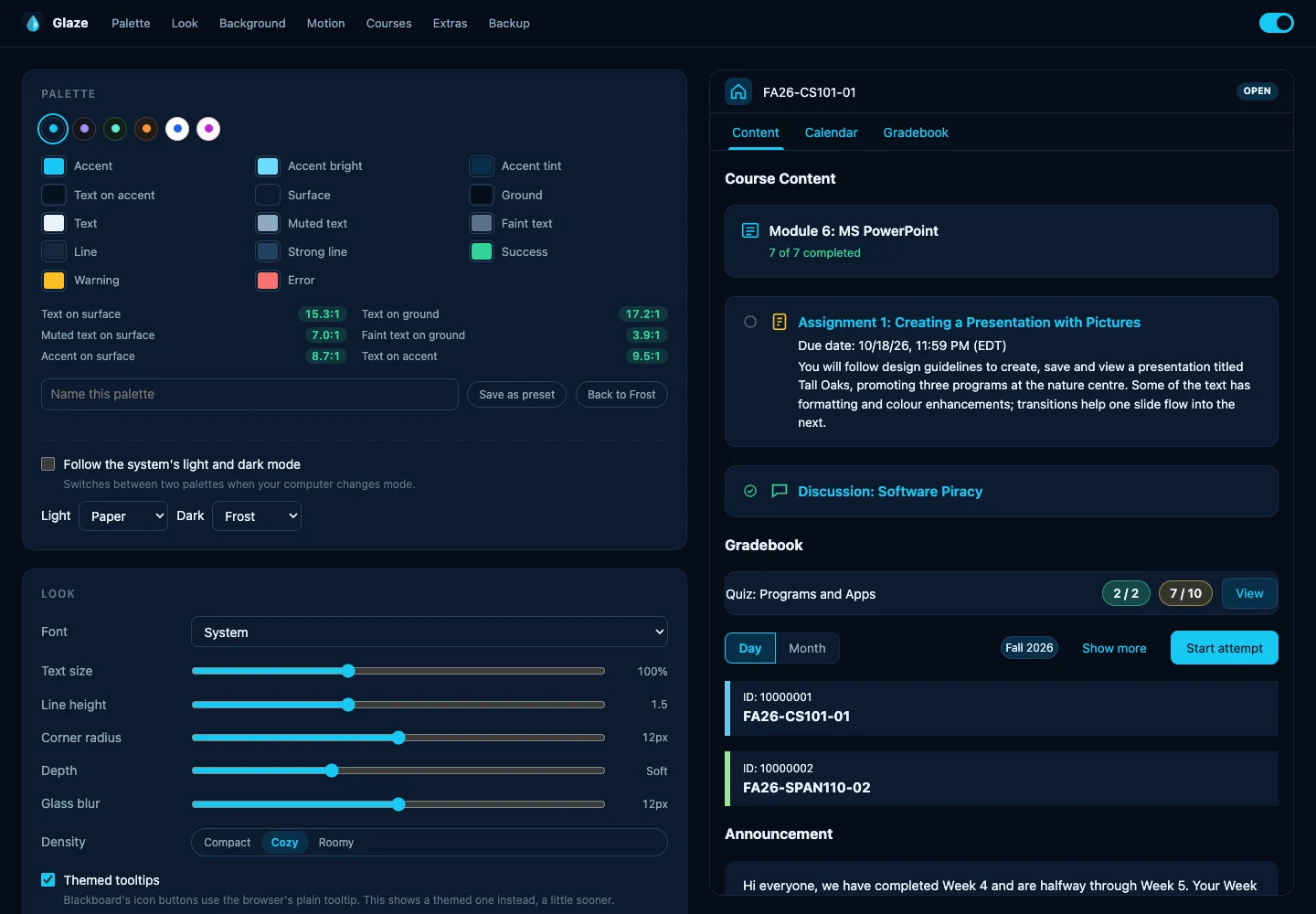
Corner radius, Depth and Glass blur change the feel of panels. Depth runs from Flat through Soft, Raised and Floating. Make small adjustments and check a slide-out panel as well as the main page.
Themed tooltips and Hover hints start enabled. Hints can reveal a date’s distance, a grade’s percentage or clipped text. Leave Themed tooltips enabled if you want Hover hints, because the hints use that tooltip system. Show the Glaze footer bar controls the footer independently.
After moving a slider, pause briefly and look for Saved. A Not saved message means the change has not been stored; read the error before closing the editor.
Choose background and motion.
Under Background → Behind the page, choose Solid, Gradient, Aurora or Image. Solid is the default. Gradient and Aurora use your palette; Aurora drifts when motion is Expressive.
For Image, enter a direct https:// picture link in Image address. There is no file-upload control. A valid address selects Image automatically. If the picture cannot load, the gradient remains underneath it.
Use Dim to quiet a bright picture and Blur to soften detail. Try a course with a long title, an announcement and a Grades panel; a background should leave those easy to read. The image host receives an ordinary browser request when the picture loads, so choose a link you are comfortable using on your school pages.
In Motion, Subtle is the default. Expressive adds stronger effects, a moving Aurora and completion feedback. Off is a useful choice for a quiet page. The checkbox Turn motion off when the system asks for reduced motion starts enabled and takes priority over the selected level.
Use the three Fine-tune switches for Page and card entrances, Hover lift and press, and Colour and border transitions. If motion distracts you or feels heavy on your computer, start with Off and a Solid background, then add back what you enjoy.
Keep course colours useful.
Tone Blackboard’s course colours to fit the palette starts enabled. It softens Ultra’s bright course colours while keeping their hues recognizable. Turn it off if you prefer Blackboard’s original course colours.
To choose colours yourself, open Messages or Grades in Blackboard once, then return to the editor’s Courses section. Recognized course names appear with a colour picker. Change a colour and inspect it back in Blackboard; the row’s Reset removes that override.
Course names are remembered on this device so the editor can label those pickers. They are excluded from settings exports and Chrome’s synced settings.
Add helpers one at a time.
All eight Extras start off. Enable one, check it on a familiar course, then decide whether it earns a place in your daily view.
| Control | What to try |
|---|---|
| Due-date urgency | Highlights recognized deadlines that are overdue, due today or within three days. Check an item whose due date you already know. |
| Countdowns and percentages | Adds relative date labels and calculated grade percentages where Glaze recognizes the page’s values. |
| Score bars | Adds a small proportion bar beneath recognized gradebook scores. |
| Shorter descriptions | Shows three lines of long course-content descriptions; hover or focus them to read more. |
| Reading width | Keeps announcements, posts and documents to more comfortable line lengths. |
| Folder previews | Hover a closed folder in course content to see available items, completion states and deadlines without opening it. |
| Course progress | Summarizes completion information visible in the course outline. It is not your final grade or an audit of every requirement. |
| Keyboard shortcuts | Press ? outside a text field to see the navigation shortcuts. |
With Keyboard shortcuts enabled, press g then c for Courses, a for Calendar, g for Grades, m for Messages or s for Activity. / focuses an available search control. These shortcuts stand down while you are typing; Escape closes the shortcut list.
Declutter can hide the floating help button, course banner images, an empty Course Faculty box and selected course tabs. Start with one item. Restore a tab by clearing its checkbox; hiding it only changes your view.
Folder previews request contents from your current Blackboard site using your existing session. They can be unavailable when the site does not return that information; opening the folder normally remains the way to inspect it.
Back up and understand privacy.
Open Backup → Export settings to download glaze-settings.json. It includes your palette, saved presets, look, background, motion, course-colour choices and Extras. Keep a copy before importing another setup, replacing an unpacked build or uninstalling.
Import settings… accepts a Glaze JSON export and replaces the current settings with its validated contents. It does not merge two collections of presets. Missing or invalid settings fall back to defaults. Export your current setup first, then check the palette, background and Extras after importing.
Reset everything requires a second click on Click again to reset. It restores default options while keeping your custom presets. It does not erase the locally remembered course-name list. For a palette-only reset, use Back to Frost instead.
Preferences are stored through Chrome’s sync storage and can follow your Chrome profile when synchronization is enabled. Recognized course names stay in local extension storage on the device. Glaze has no analytics or server receiving your coursework, grades or credentials; its bundled fonts do not need a third-party font service.
The two optional network features are folder previews, which stay on your Blackboard site, and your chosen background image, which loads from its image host. Course names are not exported, but a settings backup can include your custom palette names and image address. Review those before sharing a backup. Uninstalling removes the extension’s stored data.
Read the Glaze privacy policy for storage, permissions and request details.
Recover a familiar page.
Start with the smallest change: switch Theme on / off off in the popup and compare the same page. Then use the symptom below to find the next step.
- No “Open the editor” button: check Glaze’s version on
chrome://extensions. This guide’s editor is in 2.0.1. If you have an older store build, wait for its update or follow the official download installation above. - Popup changes, Ultra does not: check the master switch, extension enablement, site access and the page’s
/ultra/address. Refresh the course tab after installation or extension reload. - Palette keeps switching: check automatic light/dark mode. A manual swatch choice turns it off; enable it again in the editor if that was accidental.
- Expressive still looks still: check your system’s reduced-motion preference and the editor’s motion override checkbox.
- Image missing: use a direct HTTPS picture address. Check that the link loads, then adjust Dim and Blur. Choose Gradient or Solid while investigating.
- Course list empty: visit Ultra’s Messages or Grades page with Glaze enabled, then return to Courses in the editor.
- A helper is missing or inaccurate: check that its Extra is on and inspect the actual Blackboard value. Disable that helper if the page’s structure or language is unsupported.
- Layout feels crowded or hard to read: return to a built-in palette, System font, Cozy density and a Solid background. Check Chrome zoom and try the page with Glaze off.
- “Not saved” appears: keep the editor open, read the storage error and retry after the problem is resolved. Export the visible settings before a reset or uninstall.
For an issue report, include Chrome and Glaze versions, the affected Ultra page type, the control involved and whether switching Glaze off changes the result. Crop or redact course names, grades and personal details in screenshots. The sample preview is a useful comparison, but it does not prove that every institution’s page has the same layout.
Keep exploring Glaze.
Visit the Glaze overview, the Safari guide, the Chrome Web Store listing or official releases. The README, editor controls and issue tracker are the source references for this walkthrough.
Glaze is an independent project. It is not affiliated with, endorsed by or sponsored by Anthology Inc.