
Check your Mac and Blackboard
Glaze restyles Blackboard Ultra in your browser. Start with an ordinary Safari window and your school’s usual Blackboard address. Sign in through the school’s normal login, then open Courses. The address of the Ultra page should contain /ultra/.
The sign-in screen may live on another domain and keep its original appearance. Glaze targets HTTPS Ultra pages, using https://*/ultra/* so schools with different hostnames can use the same extension. Classic Blackboard pages and unrelated websites are outside that match.
| Requirement | What to check |
|---|---|
| Mac app | Intel or Apple Silicon Mac, macOS 12 or newer. |
| Styling | Safari 17.2 or newer. Check Safari → About Safari. |
| Frosted glass | Safari 18 or newer for the glass blur. |
| Blackboard | Your institution’s HTTPS Blackboard Ultra site, with an /ultra/ page. |
These are the Safari release’s requirements. Being able to open the Mac app does not establish that an older Safari can render the theme. This package is for Safari on Mac; for Google Chrome, follow the Chrome guide.
Install the Safari app
The Glaze 2.0.1 Safari release, published October 11, 2026, provides a Developer ID signed and Apple-notarized Mac app. You do not need Xcode or a source build to use this download.
- Download Glaze 2.0.1 for Safari and save the Mac app archive, glaze-2.0.1-safari-macos.zip.
- In Finder, unzip the download and move Glaze.app into Applications.
- Open Glaze from Applications. If macOS asks whether to open the downloaded app, confirm that it is the Glaze download you just obtained.
- Choose Quit and Open Safari Settings…. On macOS 12, the button reads Quit and Open Safari Extensions Preferences….
The app’s button opens Safari’s extension settings and quits the setup app. Safari loads the extension from Glaze.app, so leave the app in Applications. You do not need its setup window running while using Blackboard.
The release also includes glaze-2.0.1-safari-macos.sha256 for checking the archive. If macOS reports that the app is damaged or cannot be verified, download the signed Safari archive again from the release and check the file; do not bypass verification with Terminal commands.
Enable Glaze for your school
There are two switches to check: Safari must enable the extension, and Glaze must have website access. The theme’s own on/off control comes after those permissions.
- In Safari, choose Safari → Settings → Extensions (Preferences on older macOS). Select the checkbox beside Glaze for Blackboard Ultra.
- Return to your signed-in Blackboard Ultra tab. Click the Glaze toolbar button and allow access to this school’s Blackboard site when Safari asks.
- To review persistent access, select Glaze in Extensions settings and choose Edit Websites. Set your Blackboard hostname to Allow. Keep other websites at Ask or Deny according to your preference.
- Reload the Ultra tab once after enabling the extension or changing its website permission. Click Glaze again to open its quick controls.
Ask requires consent, Allow permits access and Deny blocks it. Safari’s website permission is broader than Glaze’s /ultra/ content-script match: seeing a website-access prompt does not mean the extension themes every page on that domain. Apple documents these controls in its Safari extensions guide and web extension permission reference.
If you use Safari profiles, enable Glaze in the profile you use for school. Apple notes that extensions start disabled in a new profile. In a private window on macOS Sonoma 14 or later, website-access extensions are off by default; use Allow in Private Browsing in Glaze’s Extensions settings only if you want it there. Begin in a normal window to make setup easier.
Try your first palette
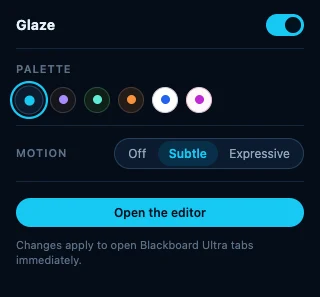
Click Glaze in Safari’s toolbar. The popup offers the theme switch, palette swatches, three motion levels and Open the editor. Hover a swatch to see its name: Frost, Midnight, Forest, Ember, Paper or Rose.
- Check that Theme on / off is on. The default is Frost with Subtle motion.
- Try Paper for a light page or Frost for a dark one. Look at a course card, navigation label and ordinary paragraph.
- Switch Glaze off and back on to compare the same page. Your saved theme choices remain available.
- Choose Open the editor when you are ready to adjust the full look.
Popup changes save immediately and apply to open Ultra tabs with Glaze running. Choosing a preset also turns automatic light/dark selection off: it is an explicit palette choice. If the popup says Not saved, reopen it and check the setting before assuming it persisted.
Make the page easier to read
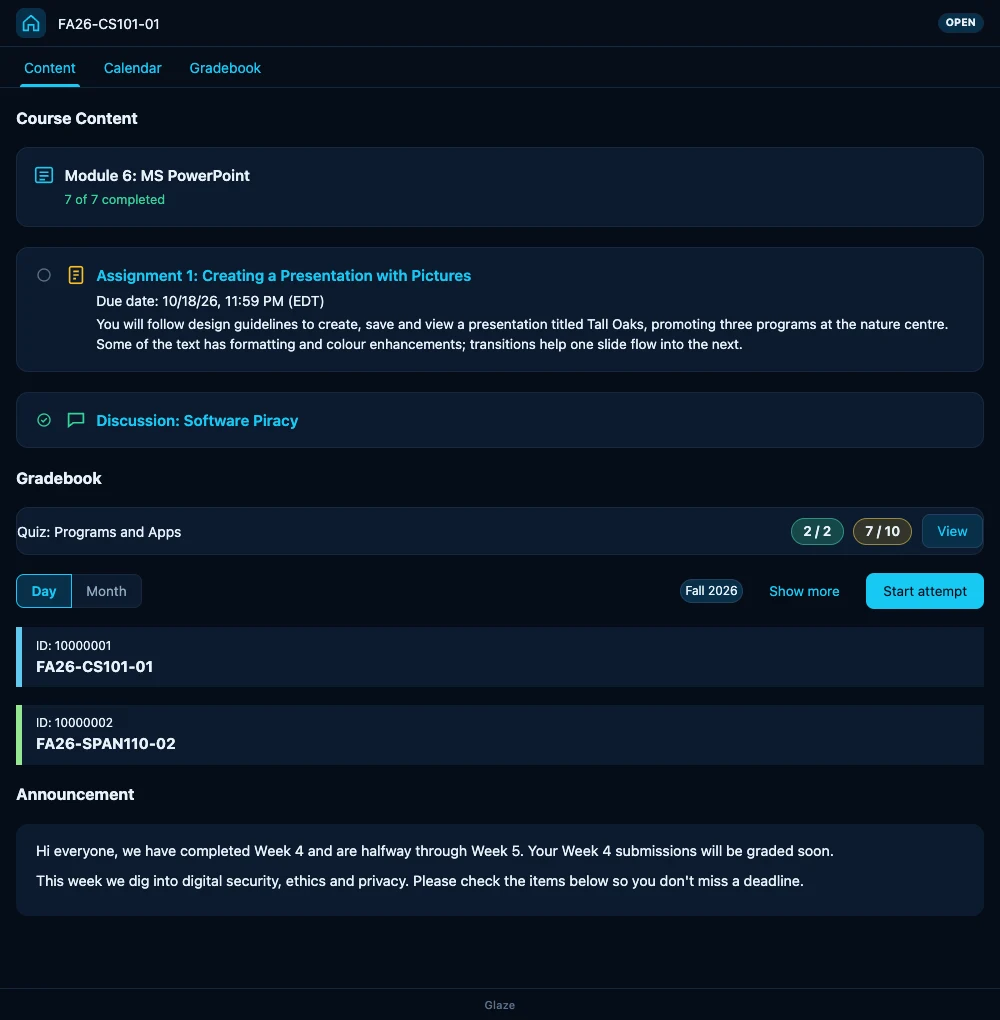
The editor combines settings with a live preview of a sample Ultra course. It saves changes automatically; sliders and colour drags wait briefly after you stop moving them. Check the Saved notice, then compare the result in your real Blackboard tab.
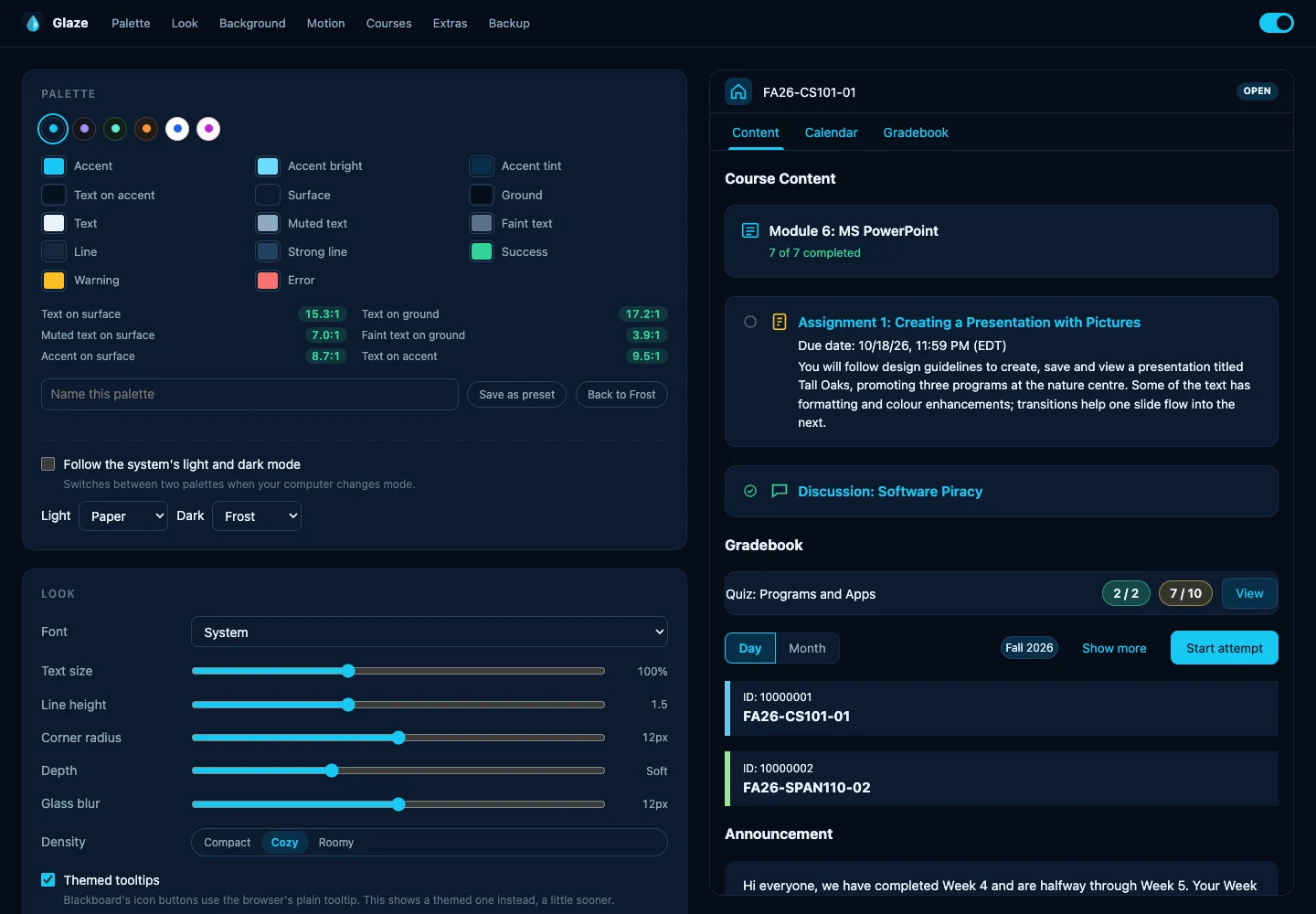
Under Look, choose System, Blackboard’s own Open Sans, Inter, Atkinson Hyperlegible, Serif or Monospace. Inter and Atkinson Hyperlegible are bundled. Increase Text size and Line height if reading feels cramped; try Roomy density if controls need more breathing space.
Corner radius, Depth and Glass blur change the surfaces. Start with a Solid background while choosing text colours. A decorative background is easier to judge once headings, muted labels and text on buttons are clear.
Under Palette, edit individual colour tokens and watch the contrast indicators. They check selected text and surface pairs; they do not certify the accessibility of every Blackboard screen. Inspect small labels, selected states and keyboard focus in the actual course too.
Name a palette and choose Save as preset to keep it. You can save up to twelve custom palettes. A saved palette stores colours; use a settings export to preserve fonts, motion and the rest of your setup. Back to Frost restores the Frost colours and turns automatic palette selection off without resetting all other options.
Follow light, dark and motion
In Palette, enable Follow the system’s light and dark mode, then choose the Light and Dark palettes. The initial pair is Paper and Frost, and your saved palettes are available in both menus. Glaze follows your computer’s appearance rather than a separate Blackboard setting.
Selecting a swatch or manually changing a palette colour turns this automatic mode off. If your theme stops following the system after a colour edit, turn the checkbox back on and verify the two selected palettes.
| Motion | What changes |
|---|---|
| Off | Removes Glaze’s entrances, hover motion and colour transitions. |
| Subtle | Gentle entrances, panel slides and hover lift. This is the default. |
| Expressive | Springier motion, a drifting aurora and a small completion burst. |
Leave Turn motion off when the system asks for reduced motion enabled to respect your Mac’s preference. The editor also lets you switch entrances, hover effects and transitions individually.
For a background, choose Solid, Gradient, Aurora or Image. Aurora drifts with Expressive motion. An image needs an https:// picture address; if it cannot load, the gradient appears instead. Use Dim and Blur to keep the page readable, and remember that an external image host receives an ordinary browser request for that image.
Tune courses and extras
Glaze tones Blackboard’s course colours to fit your palette by default. Open Messages or Grades in Blackboard once, then return to the editor’s Courses section. Discovered course names appear beside their colour controls; Reset removes a custom colour for that slot.
Ultra has ten course-colour slots. Glaze’s overrides apply to these slots, so courses sharing a slot can share your chosen colour. The course-name list is learned from pages you open on this device, rather than fetched as a complete school roster.
Every Extra starts off. Turn on one at a time, then check the relevant Blackboard page:
- Due-date urgency marks overdue, due-today and near-due items; Countdowns and percentages adds date and grade context.
- Score bars visualises a score’s share of its total. Course progress summarises completion visible in course content. Keep Blackboard’s displayed records as the reference.
- Reading width shortens lines in announcements, posts and documents. Shorter descriptions limits long content descriptions until hover or focus.
- Folder previews shows a closed folder’s contents on hover by requesting them from your own Blackboard site with your existing session.
- Keyboard shortcuts enables g then c, a, g, m or s for Courses, Calendar, Grades, Messages or Activity; / searches and ? shows the list.
Declutter can hide the floating help button, course banners, an empty Course Faculty box and selected course tabs. Hide only parts you know you do not need. If navigation disappears, restore its checkbox in Extras or switch Glaze off to see the ordinary page.
Keep a portable backup
Once the theme feels right, open the editor’s Backup section and choose Export settings. Save glaze-settings.json somewhere you can find again. It includes colours, custom presets and options, but excludes the locally discovered course names.
On another installation, choose Import settings… and select the JSON file. Import replaces the current configuration with the file’s settings; export the current setup first if you want to keep both. Invalid values are normalised to defaults, and an unrecognised file produces a notice.
Use export and import when moving between Safari and Chrome or another Mac. The extension uses the browser storage API, but Chrome’s Google-account sync description is not a promise of Safari or iCloud settings sync. Safari’s Share across devices control manages extension availability and enablement; keep an explicit backup of your Glaze choices.
Reset everything needs a second click within four seconds. It restores defaults while keeping your saved custom palettes. It is not an uninstall and does not erase the course-name cache.
Know what stays on your Mac
Glaze stores your settings through browser extension storage and records discovered course names in local extension storage. It has no analytics or server of its own, ships bundled fonts and loads no remote code. Its privacy policy describes these stores and network requests.
There are two optional request paths: Folder previews asks your own Blackboard site for folder contents, using the session you already have; an Image background loads the HTTPS image address you chose. Folder responses stay in memory briefly. Choosing a remote image means that image host can see a normal request.
Safari’s permission warning is still meaningful: an extension that restyles a page needs access to its content. Grant access to your school’s Ultra host, review the source or privacy policy if needed, and withdraw access through Edit Websites whenever you want. Export files can include an image URL and personal palette names, so inspect a backup before sharing it.
Recover, update or remove
Find the first missing step: app in Applications, extension listed and enabled, permission for the actual Ultra hostname, an HTTPS /ultra/ page, then Glaze’s own theme switch.
- Glaze is absent from Extensions: open the installed Glaze.app once, use its Safari settings button, and restart Safari if the list has not refreshed. Check that you downloaded the Safari app archive.
- The app says Safari could not load Glaze: use the signed, notarized release in Applications and open it again. If the problem continues, report the app version, macOS version and exact message.
- Enabled but no theme: check Edit Websites for the hostname after login, the active Safari profile and private-browsing setting, then reload the Ultra page. A school login page or Classic course may be outside Glaze’s match.
- The preview changes but Blackboard does not: the editor preview works independently of school-site access. Recheck permission and refresh the real tab. Another styling extension can also affect the result; compare with it temporarily disabled.
- A page is hard to use: switch Glaze off, confirm the original page works, then restore a built-in palette and disable the last Extra you changed. Check the Safari version if glass or other styles are missing.
- Courses are missing from the editor: visit Messages or Grades with Glaze enabled. Names are discovered locally; an empty list does not indicate lost Blackboard courses.
- Changes do not persist: watch for Not saved, reopen the editor and verify the value. Keep an export before clearing extension storage or reinstalling.
Update the downloaded app
Check GitHub Releases for a newer Safari package. Export settings, quit Safari and Glaze, then replace Glaze.app in Applications with the new signed release. Open the replacement app, return to Extensions settings and verify enablement, website access and your theme. This GitHub download follows the release-download workflow; do not expect an App Store update.
Turn it off or uninstall
For a temporary pause, turn the theme off in the popup, or uncheck Glaze under Safari → Settings → Extensions. To remove it, export anything you want to keep, select Glaze in Extensions settings and choose Uninstall; follow Safari’s instructions to remove the containing app. Apple also documents deleting the containing app to remove an extension. Do not depend on a reinstall retaining your settings.
Continue with the Glaze overview, Chrome guide, Safari release and download, source repository and issue tracker. Apple’s extension instructions cover Safari permissions, profiles and removal.
Glaze is an independent project and is not affiliated with or endorsed by Anthology Inc. or your institution.